

 10/22/2026
  Steve Bearden
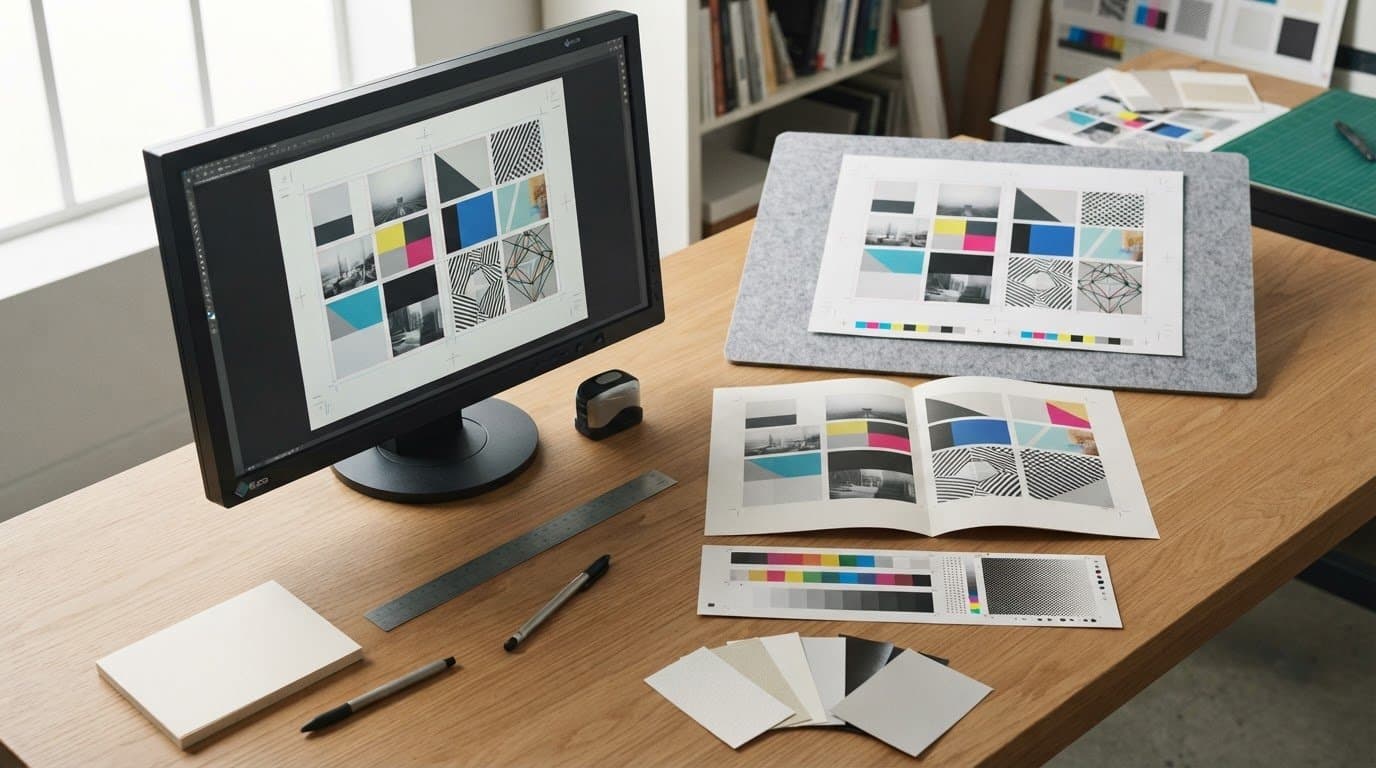
Color mode is only one part of a file that’s ready to print. For most print jobs, print-ready file specifications call for CMYK color, a 1/8-inch bleed on each side, important content at least 1/8 inch inside the trim, and images at 300 dpi. Use a high-resolution PDF, with fonts embedded or converted to outlines, to help preserve the intended layout.
It’s easy to focus on color and overlook details that affect the finished piece, from image resolution to trim space. This checklist explains how to prepare color, bleed, margins, fonts, and images, with format-specific considerations for brochures, books, and large-format graphics. It also covers what to review before submitting artwork, helping you catch common setup issues and provide production with a clear file.
Key Takeaways
- Set up bleed, trim marks, and safe margins together to help prevent unwanted white edges or clipped content.
- Choose color mode based on the print process, and prepare spot colors carefully when the project calls for them.
- Protect type and image quality by embedding or outlining fonts and using artwork suited to its final print size.
- Match the file format and artwork setup to the finished piece, especially for books, stickers, wraps, and large-format graphics.
- Review the complete file before submission, including layout, spelling, image placement, and any special-finish layers.
Bleeds, crop marks, color profiles, and margins
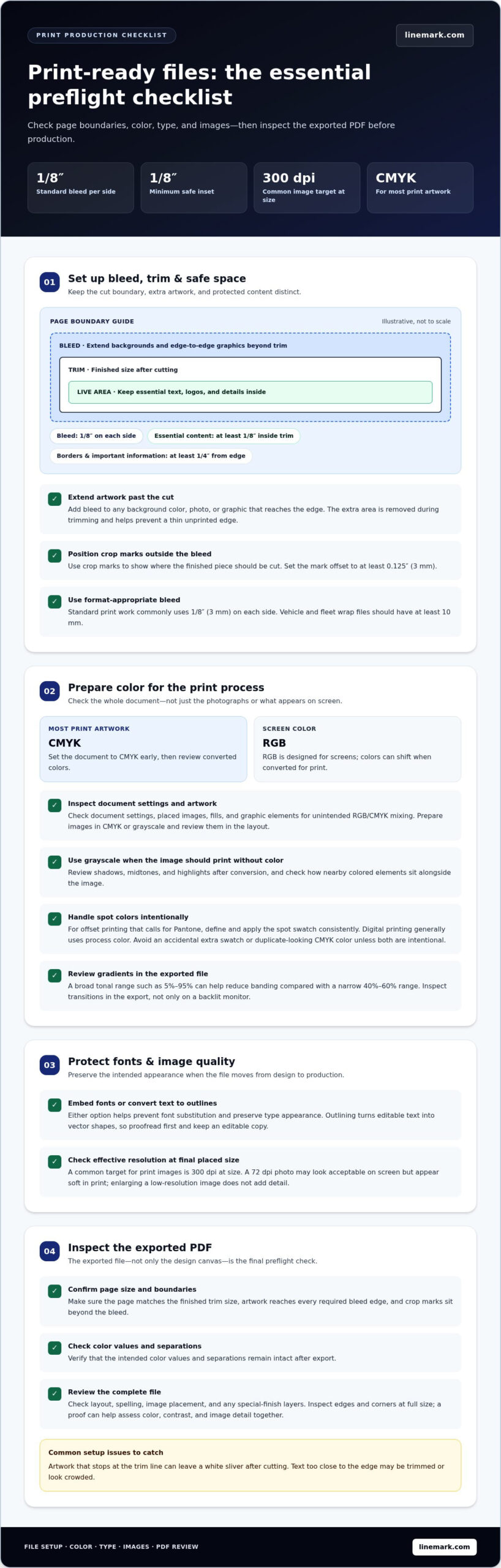
Set the page to its finished trim size, then extend backgrounds and edge-to-edge graphics by 1/8 inch on every side. Keep essential text and artwork at least 1/8 inch inside the trim line, so normal cutting variation doesn’t remove important content.
Illustrator and InDesign have document setup controls for bleed and page boundaries. This video demonstrates the setup steps in both programs:
Use this checklist before exporting a print PDF. Each setting serves a different purpose in the production file:
- Set bleed: Extend any background color, photo, or graphic beyond the trim edge by 1/8 inch. That extra area is removed during trimming, helping prevent a thin unprinted edge if cutting shifts slightly.
- Protect the live area: Keep essential copy, logos, and other critical details at least 1/8 inch inside the trim line. For borders and important information, allow at least 1/4 inch from the trimmed edge.
- Place crop marks: Add marks that show where the finished piece should be cut. Set their offset to at least 0.125 inch (3 mm), keeping marks outside the bleed area.
- Set color correctly: Use CMYK for print artwork and define spot colors properly when the job uses them. Converting RGB artwork to CMYK helps align the file with common print color workflows.
Bleed and trim size describe different parts of the page. Trim size is the final dimension after cutting; bleed is the extra image area beyond that boundary. When a document has bleed, artwork extends beyond the trim, while crop marks show where the piece will be cut. Keep important text and other live elements inside the trim area. This separation clarifies what prints, what gets cut, and what must remain visible.
Check the exported PDF, not just the design application’s canvas. Confirm that the page size matches the finished trim, artwork reaches every required bleed edge, and crop marks sit beyond the bleed. If a background stops at the trim line, cutting can leave a white sliver. Text too close to the edge may be trimmed or look crowded. Reviewing these boundaries in the exported file helps you catch problems before production.
Use the correct bleed for the format. Standard print work commonly uses 1/8 inch, or 3 mm, on each side; vehicle and fleet wrap files should have at least 10 mm. Keep safety space appropriate to the design: a large-format graphic still needs readable text and protected details, even when viewed from farther away. Confirm that the bleed setting applies to all sides, then inspect corners and edges at full size before exporting.
Do I need CMYK or RGB for printing?
Prepare most print artwork in CMYK, the color mode used in common print workflows. RGB is designed for screens, so colors displayed on a monitor can shift when converted for print. Set the document to CMYK early, then review the converted colors before exporting. This gives you a clearer view of how the design’s color values may translate to the printed piece.
Color mode affects the whole file, not just placed photographs. Check the document settings, images, fills, and graphic elements. A file may look consistent onscreen while containing a mix of RGB and CMYK objects. Use this practical checklist:
- Set the document to CMYK: Choose CMYK in the design application’s document or color settings before final export.
- Inspect placed images: Prepare images in CMYK or grayscale, then review them in the layout to catch unexpected shifts.
- Check spot colors: Define any Pantone or other spot color correctly, rather than leaving it as an accidental extra swatch.
- Review the exported PDF: Confirm the intended color values and separations remain intact after export.
Use grayscale when an image should print without color. For example, prepare a black-and-white photograph as grayscale rather than relying on a color image that only appears monochrome onscreen. Review shadows, midtones, and highlights in the converted file, since removing color can change how details look. Check nearby colored elements too, so grayscale images sit intentionally within the page design.
Pantone spot colors serve a different purpose from process CMYK. They can specify a particular spot color for offset printing, which uses a separately defined ink. Digital printing generally uses process color instead. If the job calls for Pantone, name and apply the spot swatch consistently throughout the file. Don’t include both a Pantone swatch and a visually similar CMYK color unless the design intentionally uses both.
Gradients deserve a separate check. A broad tonal range, such as 5% to 95%, can help reduce banding compared with a narrow 40% to 60% range. Inspect gradient transitions in the exported file and avoid judging them solely from a backlit monitor. A proof can help you assess color, contrast, and image detail together before the full print run.
For offset printing with spot colors, define Pantone inks in the artwork; for digital work, build the design around CMYK. This distinction is useful for commercial printing projects where color intent and production method need to align.
Font outlining and image embedding
Fonts and placed images can change between your design computer and production. Before exporting, embed fonts in the PDF or convert text to outlines. These steps help preserve the type’s appearance and prevent font substitution. Outlining turns editable text into vector shapes, so proofread carefully and keep an editable copy before converting.
Use a resolution suited to each image’s final printed size. A common target for print images is 300 dpi at size. A photo saved at 72 dpi may look acceptable on a screen but appear soft when printed at its placed dimensions. Enlarging a low-resolution image doesn’t add detail, so check effective resolution after scaling it in the layout.
- Photographs and continuous-tone images: Aim for 300 dpi at final size for standard print work.
- Large-format images: Artwork over 6 feet wide can use images as low as 150 dpi, depending on viewing distance and placement.
- Bitmap line art: Use 1200 dpi to retain crisp edges in detailed black-and-white artwork.
- Web graphics: Assets commonly made for screens are often 72 dpi and RGB, so assess them before using them in print.
For example, a 300 dpi image placed at its original dimensions retains that resolution. Enlarging it reduces effective resolution; shrinking it increases effective resolution. Check the image’s effective resolution in the layout software, then inspect fine detail at actual size. A small logo may need sharp edges, while a photograph’s texture and focus affect how it reads on paper.
Make sure the final document includes every placed asset. InDesign and other layout programs can link to external image files rather than store them in the document. If a link is missing when the file moves, the image may not appear correctly. Embed images when the workflow supports it, or package the document with its linked images and required fonts.
Use a final-file checklist before delivery:
- Confirm font handling: Verify fonts are embedded in the PDF or convert display type to outlines.
- Check image resolution: Review each image at its final size, not only at its source dimensions.
- Inspect asset placement: Open the exported PDF and confirm every photograph, logo, and graphic appears as intended.
- Proof outlined text: Compare the converted lettering with the editable layout for spacing or appearance changes.
These print-ready file specifications protect legibility and image detail, but resolution alone can’t correct a blurry source photo or poorly focused image. Review the design at 100% zoom and assess small type, fine lines, and image detail before release.
Format-specific specs for stickers, wraps, signage, labels, and packaging
Choose a file format that preserves artwork detail and communicates the finished shape. A high-resolution PDF is the standard choice for most print jobs; EPS and TIFF are also suitable for commercial printing. Adobe Illustrator files can retain editable vector artwork, while a press-ready PDF keeps fonts, images, and page elements together for review. Before export, confirm the finished dimensions and include any required cutting or finishing information.
Match the artwork to the item’s shape and viewing distance. Stickers, labels, and packaging may need a clear boundary between the printed artwork and the cut shape. Keep the cut path distinct from the design, and label it clearly if it is supplied on a separate layer. For a wrap or sign, inspect the full layout at its intended size and make sure essential content remains readable across panels, edges, and installation areas.
- Stickers and labels: Use vector artwork for crisp logos and type, and identify the intended cut contour separately from printed elements.
- Packaging: Organize artwork around the dieline, keeping folds, cuts, and printed content visually distinct.
- Vehicle wraps: Include at least 10 mm of bleed, extending edge artwork beyond the final trim or panel edge.
- Banners and signage: Use vector artwork or raster images at 150-300 dpi at final size.
Vector graphics scale without losing quality or detail, making them useful for logos and lettering across different sign sizes. Raster artwork depends on pixel dimensions and final placement. A photograph that looks sharp on a laptop may lose detail when enlarged for a banner. Check its effective resolution at the finished size, then inspect small text and image detail at full scale.
Use a PDF when you need one consolidated production file. Export at high resolution and review every page or artboard before submission. EPS can preserve vector elements, while TIFF is commonly suitable for raster artwork. An AI file is useful when editable Illustrator artwork is needed, but embed linked images or include the assets so they don’t disappear when the file moves.
For multi-part work, make file names and layers easy to understand. For example, label a separate cut path “Cutline” and keep it distinct from the printed graphic. If the artwork includes spot UV or foil, provide a clearly labeled layer or separate file for those elements. Before export, use a final checklist to confirm dimensions, image quality, fonts, cut paths, and any special-finish layers.
Print-ready file definition and components
A print-ready file is artwork prepared so production can reproduce it without rebuilding the layout. It brings together the finished page or panel dimensions, placed images, fonts, color information, and production instructions in a usable package. A high-resolution PDF is the standard format for most print jobs. The practical test is whether the exported file accurately shows the intended design and clearly communicates how each element should print, trim, or finish.
Think of the file as a production handoff, not merely a saved design. For example, a brochure PDF needs complete pages in reading order; a package design may also need a separate dieline. Use this checklist before sending artwork:
- Confirm the document size: Check that page dimensions match the finished piece, not an earlier draft or a screen mock-up.
- Review placed assets: Open the exported PDF and confirm photographs, logos, and graphic elements appear correctly.
- Check text and contrast: Proof spelling and grammar, then make sure text remains distinct from its background.
- Include finishing instructions: Supply separate, clearly labeled layers or files for spot UV or foil elements.
- Compare versions: If submitting several files, include a PDF or printed mock-up as a reference for reviewing proofs.
- Inspect the final export: Preview the PDF at 100% to catch small layout, image, or type issues.
Clear organization matters when a job contains multiple pages or production elements. Name files descriptively, such as “AnnualReport_Cover” or “Label_Cutline,” rather than relying on “Final2.” Keep artwork, reference PDFs, and special-finish layers easy to distinguish. For a multi-page document, confirm that pages appear in the correct sequence and that no draft pages or alternate versions remain in the export.
Keep visual design separate from production directions. A spot UV layer, for example, should identify only the areas receiving that finish, with a clear label in the layer or file name. A foil layer should likewise show the intended areas without obscuring the underlying artwork. This organization helps production interpret the file without guessing which elements are printed or finished differently.
Before release, check the PDF in a viewer rather than relying only on the design application. Compare it with the approved mock-up, review text and image placement, and confirm that every page opens. If several assets support one project, keep a simple file list that identifies each file’s role. For organized commercial artwork preparation, start a print project with the production requirements clearly defined.
Linemark: Custom Book Printing
Linemark’s Custom Book Printing can take your prepared artwork through production and into a finished book. A clear production file helps align page layout, images, and type with the intended result. For a project with multiple pages or detailed graphics, organized files and a reviewed PDF make the handoff easier to interpret.
Turn to Linemark when you’re planning a custom book and need printing support. Share the finished artwork and relevant production details to give the project a clear starting point.
Contact Linemark to discuss your Custom Book Printing project.
Put Your Artwork Into Production
Align the final artwork with how people will encounter the printed piece. A file prepared for a bound book has a different production context from one intended for a mail campaign or oversized display. Treat print-ready file specifications as part of the project plan, not a last-minute export task. Bring the approved design, final format, and finishing details together before production begins. This keeps creative decisions connected to the finished use.
Linemark offers Custom Book Printing, Direct Mail, and Large Format Graphics for distinct print needs. As you organize your files, define the intended format and gather the production artwork for a clear handoff. This preparation gives your team a stronger starting point for evaluating the finished piece against its purpose.
Ready to move your project forward? Contact Linemark about your print files. A clear plan can help turn prepared artwork into a purposeful printed piece.
Frequently Asked Questions
Need Help With Your Files?
For print production support, contact Linemark with details about your project and the artwork you’re preparing. Linemark offers Custom Book Printing, Direct Mail, and Large Format Graphics, each suited to a different finished piece. Before reaching out, gather the latest PDF, source file, and a short note describing the intended size and finish. This gives the conversation a clear starting point.
Why does my printer keep rejecting my file?
A file may be rejected if it’s difficult to produce reliably, even when it opens on your computer. Common issues include missing linked images, fonts that aren’t embedded, an incorrect page size, or an unsuitable file format. For example, a Word layout may need to be converted to PDF. Review the rejection notice, then compare the requested correction with the exported file, not just the original design.
What does print-ready file mean?
A print-ready file contains the finished artwork and the production details needed to reproduce it without rebuilding the design. The completed PDF should show the intended page dimensions, placed elements, and final text clearly. For a multi-page booklet, check that pages are in order and no draft pages remain. Keep production instructions separate from artwork so finishing details aren’t mistaken for printed content.
What file formats do commercial printers accept?
A high-resolution PDF is the standard format for most print jobs; EPS and TIFF are also commonly suitable. Adobe InDesign, Illustrator, and Photoshop files are widely used, but linked assets and fonts need proper handling. If your source is a Microsoft Office file, export it as a PDF and inspect the result. The right format depends on whether the job uses editable vector artwork, raster images, or multiple pages.
What resolution should images be for print?
For standard print work, prepare images at 300 dpi at their placed size. Check effective resolution after scaling, because enlarging an image lowers its effective detail. A photograph that appears sharp on a screen may print soft if it began as a small web graphic. Large-format images over 6 feet wide can use 150 dpi, while bitmap line art calls for 1200 dpi to preserve crisp edges.
What color mode and color profile should print-ready files use?
Use CMYK for most print artwork, and prepare images in CMYK or grayscale. RGB is intended for screens, so converting an RGB file can shift some colors. If the job requires a Pantone spot color, define that swatch correctly rather than approximating it with a process-color mix. For example, keep a grayscale photograph in grayscale and review it alongside nearby CMYK artwork in the exported PDF.
What bleed, trim, and safe margins are required for printing?
Standard print work commonly uses 1/8 inch of bleed on every side, with critical content at least 1/8 inch inside the trim. Trim is the final cut size; bleed extends artwork beyond it. Keep borders and important information at least 1/4 inch from trimmed edges. For vehicle and fleet wraps, use at least 10 mm of bleed. Crop marks should sit outside the bleed area.
What fonts and text should be embedded or outlined?
Embed fonts in the PDF or convert text to outlines to reduce substitution problems. Outlining changes letters into vector shapes, so save an editable version before converting. Then inspect the PDF for spacing changes, missing glyphs, or altered line breaks. For example, compare a heading with the original layout and check that small text remains legible. Fonts smaller than 7 pt are discouraged for readability.