

 10/21/2026
  Steve Bearden
A PDF proof can look right and still be the wrong proof for judging final print color. Knowing how to proof a print job correctly means using a digital proof to review copy, layout, image placement, and page order, then choosing a physical proof when color, paper, or finish needs an in-person check. Review every page before approval: approval signals that the job is ready to print as shown.
A PDF is a practical way to catch many errors before production, but a screen cannot perfectly represent printed color. That distinction matters for brand-sensitive pieces, detailed publications, and high-volume print runs. This guide explains what each proof format can show, how to inspect layout, images, color, and copy, and how to give clear revision notes so the approved file is ready for production.
Key Takeaways
- Review images at 100% magnification and check sharpness, cropping, placement, and resolution at final size.
- Use a PDF to assess layout and copy, but rely on a physical proof when color, paper, or finish needs close evaluation.
- Check every page for order, trim, bleed, safe margins, and alignment, even if only one page was revised.
- Read all copy carefully, paying close attention to names, dates, phone numbers, addresses, and other details that are easy to overlook.
- Make revision notes specific by identifying the page and the requested change before approving the proof for production.
Checking images and front-to-back layout
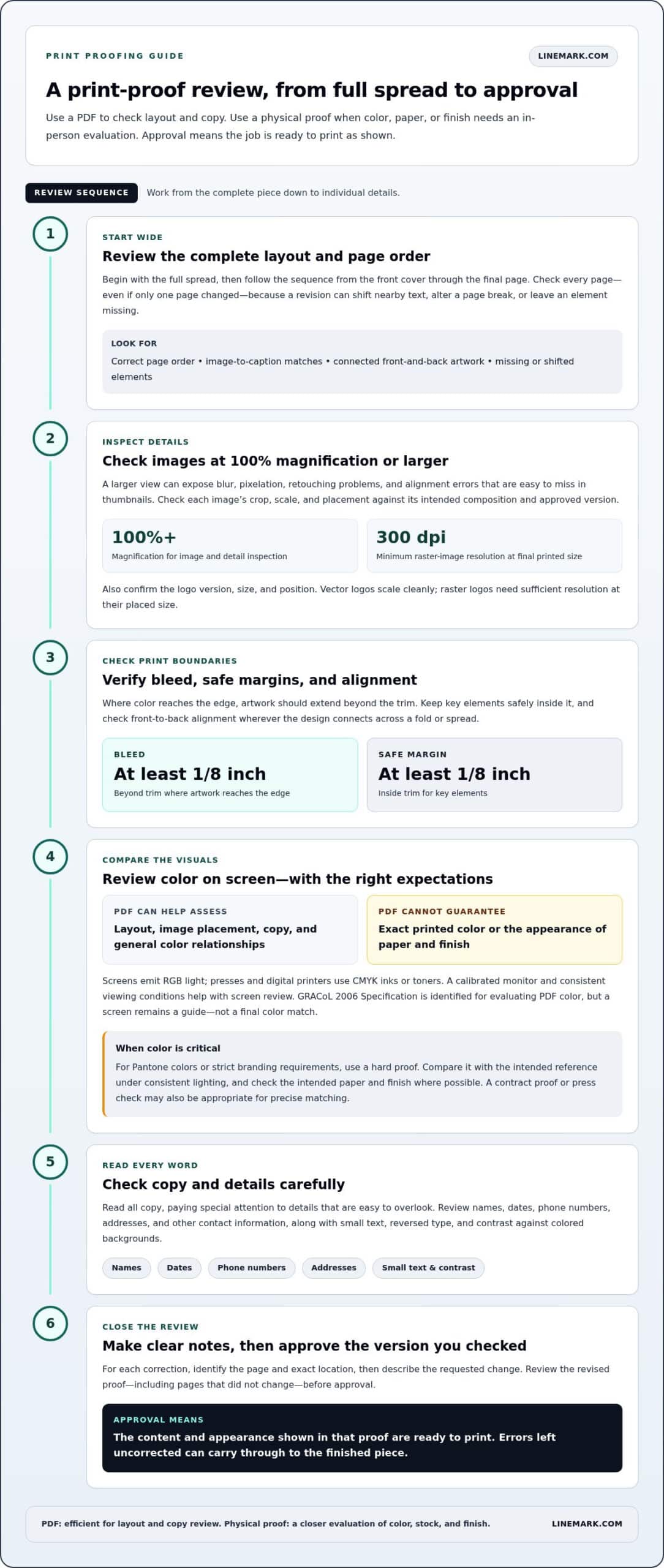
Start with the full spread, then inspect individual images and details. A PDF viewed at 100% magnification or larger can expose blurry photos, awkward crops, misaligned elements, and layout issues that are easy to miss when pages appear as thumbnails.
Check the front and back together wherever the design connects across a fold or spread. Confirm that photos, captions, logos, and other elements are in their intended positions, and compare each image with the approved version and its intended use.
For a practical look at digital soft proofing before print, watch Julieanne Kost’s Lightroom Classic walkthrough:
- Inspect each image at 100% magnification or larger. This view helps reveal pixelation, blur, retouching problems, and alignment errors that a smaller page view can conceal.
- Check every photo’s crop, scale, and placement against the intended composition. Look for faces or product details cut off by the frame, unexpected empty space, and images that appear stretched or positioned on the wrong page.
- Confirm that raster images have at least 300 dpi at final printed size. An image may look sharp on screen but print poorly if it’s enlarged beyond its usable resolution.
- Review logos for the correct version, size, and position. Vector logos can scale cleanly, while raster logo files need sufficient resolution at their placed size to keep edges and lettering crisp.
- Build a contact sheet when a job contains many images. Thumbnails ranging from 2×3 inches to 8×10 inches make it easier to compare image selection, sequence, and visual consistency across a group.
- Inspect a cropped detail at its intended print size. For example, print a 2×2-inch section from an image intended for an 8×10-inch print to judge fine details at a practical scale.
- Check bleed, safe margins, and the front-to-back alignment. Extend artwork at least 1/8 inch beyond trim where color reaches the edge, and keep key elements at least 1/8 inch inside the trim.
- Compare the proof’s file size with the images it contains. A multi-page print file smaller than 1 MB may signal missing or low-resolution images, so inspect the pages rather than assuming every image is present.
Use the proof to compare the finished layout with your expectations, not just to review image quality on its own. For a brochure or booklet, follow the sequence from the front cover through the final page, checking that images match their captions. Note the page number and exact location of each correction so revisions are unambiguous.
Evaluating color in PDFs and hard proofs
Once you approve a proof, you are responsible for the content and appearance shown in that version. The printer may check submitted files for production-related issues, but approval signals that the file is ready to print. Any errors left uncorrected can carry through to the finished piece.
Use a PDF proof to assess layout, image placement, and general color relationships, not to predict exact printed color. Screens emit RGB light, while presses and digital printers use CMYK inks or toners, so colors may look different on paper than they do on a display.
For screen-based color review, use a calibrated monitor and consistent viewing conditions. GRACoL 2006 Specification is identified as the monitor calibration specification for evaluating PDF color. Even with calibration, paper stock and coatings affect how colors appear on the printed piece, so the screen remains a guide rather than a final color match.
- Compare brand colors with their intended specifications. Check each prominent color against the approved brand reference and note any unexpected shifts, especially in logos, large backgrounds, and color blocks. A PDF preview can show relationships between colors, but it can’t guarantee the printed result.
- Review contrast in context. Look at small text against colored backgrounds, reversed type, and adjacent color panels. For example, confirm that a white headline remains distinct over a light brand color rather than blending into the background.
- Use a hard proof for critical color decisions. A physical proof is recommended when Pantone colors or strict branding requirements make color accuracy important. Review it under consistent lighting and compare it with the intended reference, not only with a screen image.
- Check the actual paper and finish where possible. Paper shade and coatings can change the appearance of the same ink, particularly for subtle neutrals and saturated colors. A hard proof on the intended stock provides a more relevant comparison than a proof on different paper.
- Consider a small test print before a larger run. For critical projects, a printed sample can reveal color and detail issues before full production. To reduce differences, use the same paper and printer model for the proof and final prints.
When exact color matching matters, discuss Pantone specifications or a hard proof on the intended stock before production. A contract proof or press check may also be appropriate for precise matching. Choose the review method according to the project: a PDF supports efficient layout and copy review, while a physical proof helps assess color, stock, and finish together. Neither soft proofing nor a calibrated display makes screen color perfectly accurate, so choose a proof that suits the document’s needs.
Should I review every page?
Yes. Review every page in every proof, even if the latest revision changed only one page. A small correction can shift nearby text, alter a page break, or leave an element missing elsewhere. To learn how to proof a print job correctly, treat each page as part of the complete piece. Start with the full layout, then inspect individual pages and spreads.
Use the same magnification when comparing a printed proof with its digital PDF. This makes differences in alignment, spacing, and placement easier to spot. A calibrated monitor can support consistent viewing, but it cannot show how a physical sheet feels in your hands. For the digital review, use a full-sized computer screen rather than a phone, where the page may be too small to assess clearly.
- Review the complete document from beginning to end. Confirm that every page appears and that the order matches the intended reading sequence, including covers, inserts, and blank pages.
- Check page count against the binding format. Saddle-stitched booklets need a page count divisible by 4, while perfect-bound books need a page count divisible by 2.
- Scan the layout before reading individual lines. Look for unexpected blank areas, uneven spacing, inconsistent headings, and pages that feel visually crowded compared with adjacent pages.
- Check alignment across spreads and front-to-back elements. A graphic that crosses a spread should line up at the center, while elements printed on both sides should sit in their intended positions.
- Confirm that important content has safe margins. Keep key text and design elements at least 1/8 inch inside the trim edge so they remain on the finished page.
- Inspect bleed wherever color or artwork reaches an edge. Artwork should extend at least 1/8 inch beyond the trim edge to help avoid unintended white slivers after trimming.
- Compare the PDF and proof page by page. Check that no text, image, chart, or other element is missing, and use the same magnification for both views.
- Record problems by page and location. For example, note “page 6, lower-right caption,” rather than writing “caption looks wrong,” so the correction is clear.
For a long report or catalog, use two review passes: scan the overall layout first, then check each page in detail. When deciding how to proof a print job correctly for a multi-page file, assign specific pages or spreads to separate reviewers, then have one person confirm the full sequence. This keeps layout issues visible without letting detail checks distract from page order, consistency, and overall design.
Checking copy, names, dates, and contact information
Common mistakes include misspelled names, outdated contact details, missing copy, and incorrect page order. Read the proof carefully from beginning to end, then compare important details with the approved source material.
Read every word aloud to catch errors a quick scan can miss. Check headlines, captions, dates, phone numbers, mailing addresses, URLs, company names, product names, and dollar amounts against the latest approved copy. Watch for similar-looking numbers and letters, such as a zero and the letter O in a phone number or web address.
- Verify names and other proper nouns against the source document. A company name, person’s name, or product name can be spelled consistently in the copy and still be wrong.
- Check every date, phone number, URL, and mailing address character by character. One incorrect digit or letter can make an event detail or contact method unusable.
- Review all variable information in personalized pieces. Confirm that names, addresses, and other changing fields appear accurately in the intended places, not as blank fields or mismatched data.
- Compare page numbers with the document’s page sequence. Check that numbering starts and ends as intended, and that section titles or contents references point to the correct pages.
- Test each QR code and barcode on the proof. Scan the printed code to confirm it reads and leads to the intended destination; compare encoded details with the approved information.
- Inspect cropped image details at their final printed size. Enlarge or isolate a critical area, such as small product text, to spot softness or detail loss that a full-page view may hide.
- Review technical prepress elements as well as visible copy. Check file setup, image resolution, fonts, color settings, bleed, and trapping, since each can affect what production will produce.
- Confirm that the proof matches the latest approved file. Compare revised pages with the source document so earlier copy or corrections aren’t accidentally restored or omitted.
Proofing mistakes often happen when reviewers focus on spelling but overlook numbers, variable fields, or production details. Review editorial accuracy and technical setup in separate passes, and give each reviewer a clear task when several people are involved.
For a commercial print job, make revision notes specific: name the page, identify the exact text or element, and state the correction. Precise notes help ensure the production file reflects the changes; vague comments such as “fix the address” leave room for another error.
Digital versus physical proofs
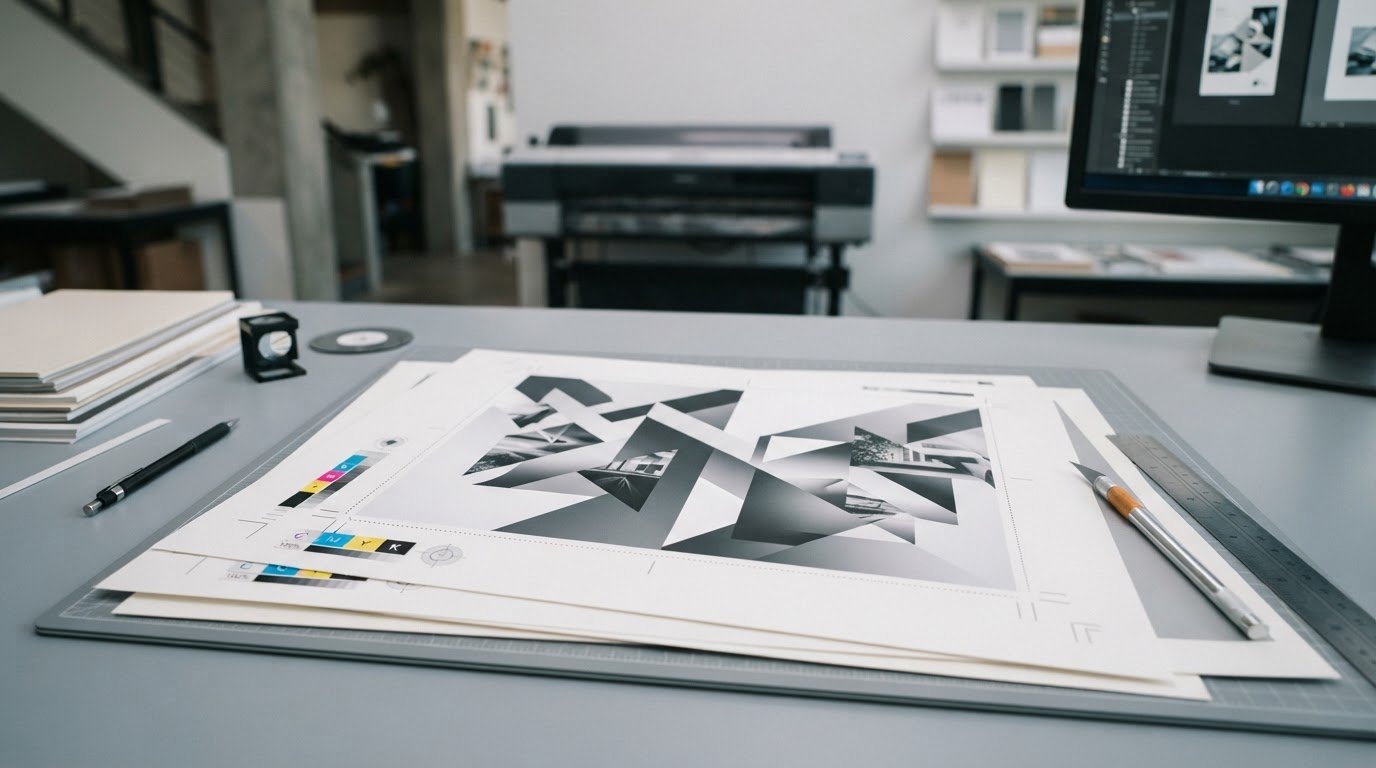
A PDF proof is best for reviewing copy, layout, image placement, and page order. A physical proof is the stronger choice when you need to judge printed color, paper stock, or finish directly.
Request a contract proof or press check when exact color matching is critical, such as for Pantone colors or strict brand requirements. These methods provide a closer production reference than viewing artwork on a screen.
Choose the proof format according to the decision you need to make. Digital proofs are often available the same day files are submitted, making them useful for catching errors before production. Printed proofs add 1-3 business days to the proofing timeline, plus shipping, so include that time when planning the job.
- Use a PDF proof to review the document’s structure. Check that all text and artwork appear properly, that images are placed as intended, and that page order is correct. A PDF is designed primarily for layout and content review, not judging final printed color.
- Don’t use a browser preview as your only review. Browser previews can display colors and formatting inaccurately, so review the actual PDF on a full-sized computer monitor instead.
- Use a calibrated monitor for soft proofing. Soft proofing simulates paper color, inks, and a printer in image-editing software. It can help identify likely color shifts, but it isn’t 100% accurate, even when the required settings are in place.
- Choose a hard proof to evaluate the physical result. A printed proof offers a direct view of color, stock, and finish. Compare it with the intended reference under consistent lighting, since paper and coatings influence how colors appear.
- Match the proof conditions to the planned production. Using the same paper and printer model for the proof and final prints can reduce differences. If the production stock or finish changes, the proof may no longer represent the intended result.
- Use a small printed sample for a critical run. Review fine details and color on the sample before committing to a larger print quantity. This is especially useful when exact accuracy is essential and the printed piece must meet strict visual expectations.
For digital printing, select the proof format that fits the project’s review needs. Explore digital printing options for print projects that need a coordinated path from file review to production.
Treat each proof as an answer to a different question: is the page arranged as intended, or does the printed piece meet the required visual standard? A PDF print proof is primarily for checking layout, text accuracy, image placement, and overall design, not final color output. Use it to resolve concerns about composition and content, but do not rely on it to approve printed color.
For a color-critical print run, a physical printed proof is the most reliable way to assess colors, paper stock, and finish before production. It grounds approval in the printed result rather than a screen view. The formats serve complementary purposes: the PDF supports design review, while the physical proof confirms qualities that depend on the printed piece. Choose the proof that addresses the decision still to be made, and assess the page and its physical appearance separately.
Linemark: Custom Book Printing
Linemark’s Custom Book Printing is a natural next step when your approved proof is for a book or publication. A clear review process helps keep approved copy, imagery, and layout aligned with the file intended for production. Share your print requirements and proofing priorities, especially if color, paper, or finishing details matter to the final piece.
For other print needs, Linemark also offers Commercial Printing, Direct Mail, and Large Format Graphics. The right fit depends on what you are producing and how the materials will be used. Share your project goals and where you are in the proofing process to start a focused discussion.
Contact Linemark to discuss your print project.
Move from approval to production with confidence
A clear proofing process creates a reliable handoff from review to production. Before approval, agree on which file is final, who has authority to approve it, and how any last revisions will be recorded. This shared understanding keeps decisions organized as the project moves forward.
Knowing how to proof a print job correctly means treating approval as a production decision, not simply the end of proofreading. The approved proof becomes the reference for the finished work, so make sure your team is ready to proceed with the version in front of them. For a book, mailing, or graphic installation, Linemark offers Custom Book Printing, Direct Mail, and Large Format Graphics.
Bring your project goals and production questions into a focused conversation. Contact Linemark about your print job and take the next step with a clear plan.
Frequently Asked Questions
What is a PDF proof?
A PDF proof is a digital preview of a print file prepared for review before production. It lets you inspect the supplied artwork as assembled in a portable document, including page composition and content. Open the PDF itself rather than relying on a browser preview, and confirm that you have the latest version. A consistent file name, such as “annual-report-proof-final,” can help your team avoid commenting on an outdated draft.
Can my printer catch spelling mistakes?
A printer may catch production-related file issues, but you are responsible for confirming that the content is accurate. For example, a file check may identify a font or setup problem without knowing whether a person’s name is spelled correctly. Assign a content owner to verify facts against approved source material, then have a separate reviewer check for typos and omissions before approval.
What Should You Look at?
First check whether the piece communicates its purpose clearly, then inspect the details that support it. For an event flyer, make sure the event information is easy to find and the main image reinforces the message. For a report, check that headings, charts, and captions guide readers through the content. Review each element in context, not as an isolated design component.
What information should be checked on a print proof?
Check factual details against the approved source, including names, dates, addresses, phone numbers, web addresses, and dollar amounts. Confirm that the quantity and paper stock in the job details match your intended order, too. This is especially useful when a project changes during proofing: adjusting the quantity at that stage may affect production planning, particularly if the selected stock is not house stock.